


Introduction
"Email throttling" means two different things, and both matter for cold email. The first is throttling done to you: a receiving server that decides you are sending too fast and starts answering with temporary refusals. The second is throttling you do yourself: deliberately pacing your sends so the first kind never happens. This guide is mostly about the second, because it is the one you control.
The short version: never send a campaign's daily volume in one burst. Either spread it evenly through the sending window, or cap it as "N emails every M minutes". If you cap it, make the cap a sliding window, so no M-minute stretch ever holds more than N sends, not just each clock-aligned block.
When The Receiving Server Throttles You
Receiving servers protect their users by limiting how fast an unfamiliar or poorly rated sender can deliver. They do it with 4xx replies, which mean "try again later":
| Reply | Who sends it | What it means |
|---|---|---|
421 4.7.28 | Gmail | An unusual rate of mail, or of unsolicited mail, from your IP, domain or content; temporarily rate limited |
421 RP-001 to RP-003 | Outlook.com | Your message rate, per-connection rate or connection count is over its limit |
450 / 451 | Many servers | Temporarily refused; sometimes greylisting, sometimes rate limiting |
These are soft bounces, and a sending server will retry them. Retrying at the same pace makes things worse: Gmail's permanent 550 5.7.28 is where sustained unsolicited volume ends up. Our list of email bounce codes has the full text of each. The fix is not a cleverer retry; it is sending more slowly in the first place.
Your own provider throttles you too. Microsoft documents a limit of 30 messages a minute per Exchange Online mailbox and throttles submissions above it (Exchange Online limits). A cold email campaign should never come close, but a tool that releases a whole day's queue at 9:00 sharp can.
Why Bursts Look Wrong
- People do not send like that. Fifty one-to-one emails in a minute from one mailbox is a script, and filters are trained on exactly that difference.
- Bursts concentrate risk. If the list has a bad segment, a burst sends all of it before the first bounce comes back. Spread out, the bounces arrive while most of the campaign is still unsent, and you can stop it.
- Bursts hit the same receiving domain at once. B2B lists cluster: twenty contacts at one company means twenty connections to one mail server in the same minute.
- Replies arrive in a wave. A burst at 9:00 produces a reply wave by 9:30 that one person cannot answer quickly.
Two Ways To Pace A Campaign
Even Spreading
Divide the day's volume across the sending window. With 150 sends in a nine-hour window (540 minutes), that is one send roughly every 3.6 minutes, or about three every ten minutes. Each mailbox also keeps a randomized gap between its own sends, so the pattern does not tick like a clock. This is the right default for almost every campaign.
Sending In Batches
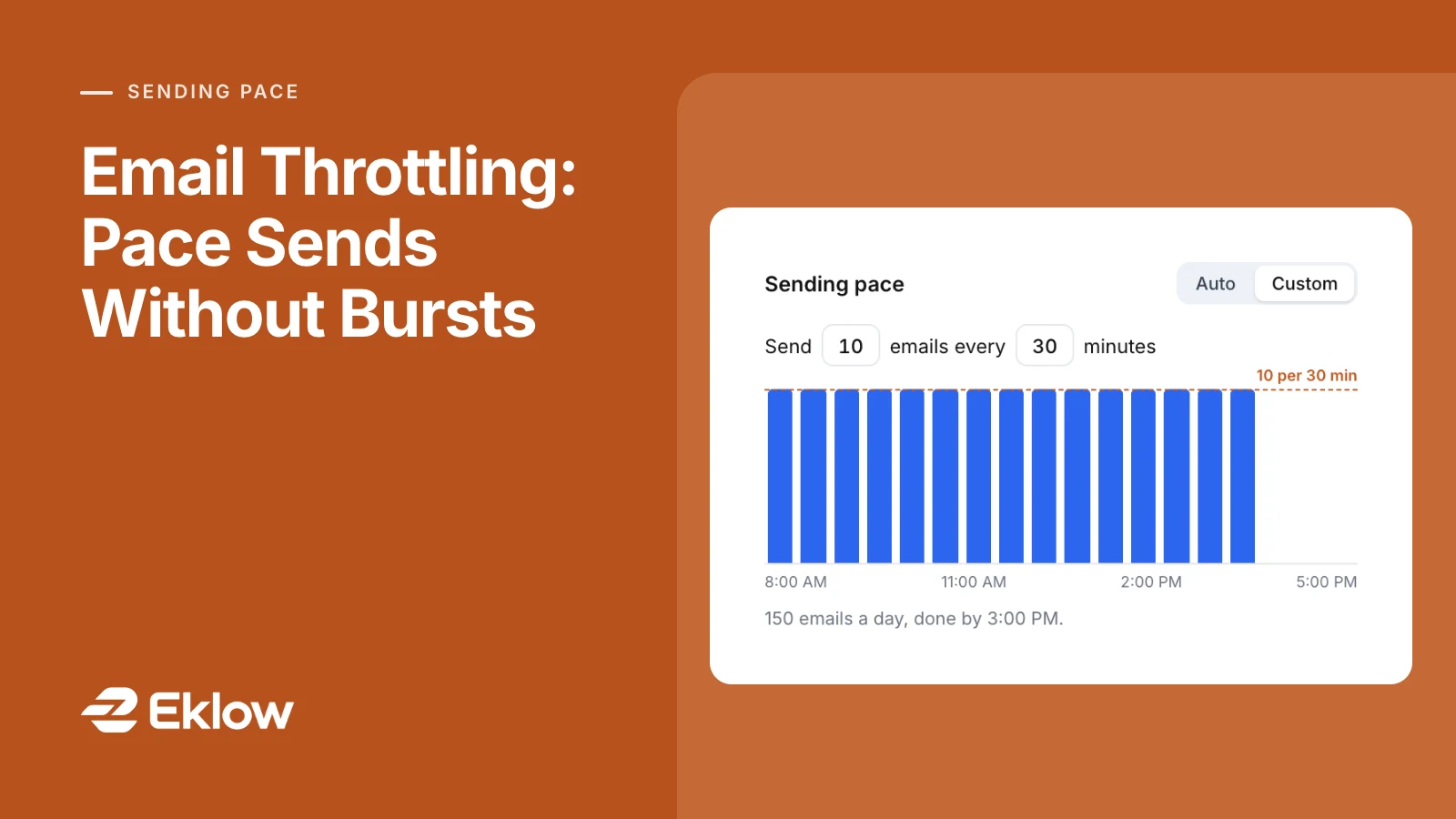
Set an explicit rate: "send 10 emails every 30 minutes". Batches are useful when you want a hard ceiling that does not depend on how many mailboxes are in the campaign, for example:
- A team that can only handle a set number of conversations an hour.
- A campaign on a domain you are cautious about, where you want the rate fixed while you watch the first results.
- A campaign that should finish its day early, leaving the afternoon for replies.
A batch setting also caps the day. Ten every 30 minutes in a 540-minute window allows at most 18 batches, the first at the window's opening minute: 18 × 10 = 180 sends a day. If the campaign has capacity for 150, the batches go out at 08:00, 08:30 and so on, and the 150th send leaves at 15:00. Set two every 60 minutes and the same window allows only 18 sends a day, which may be far less than your mailboxes could carry.
Fixed Blocks Versus A Sliding Window
There are two ways to enforce "10 every 30 minutes", and only one of them does what it says.
| Method | How it counts | Worst case for "10 every 30 minutes" |
|---|---|---|
| Fixed blocks | Resets the count at 09:00, 09:30, 10:00… | 10 sends at 09:29 and 10 more at 09:30: 20 in two minutes |
| Sliding window | Before each send, counts the sends in the last 30 minutes | Never more than 10 in any 30-minute stretch |
Fixed blocks are easier to build and look the same on a chart, which is why they are common. The burst at the block boundary is exactly what pacing was supposed to prevent. A sliding window checks when the oldest send in the current window will age out and holds the next send until then.
Choosing A Pace
- Start from the daily number. Work out what your warmed mailboxes can carry first; how many cold emails per day covers the arithmetic.
- Use an even spread unless you have a reason not to. It uses the whole window and keeps each mailbox's sends far apart.
- If you batch, keep batches small and frequent. Five every 15 minutes is gentler than 20 every hour, with the same daily total.
- Check that the batch fits the window. Batches × size must cover your daily volume, or the campaign takes longer than planned.
- Pace by the recipient's clock. A window in the contact's own time zone spreads one campaign over several hours of the world's day; see sending in the recipient's time zone.
Email Throttling Questions
How Long Should I Wait Between Cold Emails?
No provider publishes a number. What matters is that gaps are irregular and that one mailbox's day is spread across hours rather than minutes. A randomized gap of a minute or more per mailbox, inside a window of several hours, does both.
How Do I Know If I Am Being Throttled?
Look for 4xx replies in your sending logs or delayed-delivery notices, especially 421 replies that mention rate or unusual activity. Delivery that takes hours rather than seconds is another sign; the email delivery delay guide shows how to read the timestamps in a message's headers.
Is A Batch Limit Per Mailbox Or Per Campaign?
It depends on the tool. A per-campaign batch limit is a ceiling on the campaign as a whole, however many mailboxes it uses. Per-mailbox pacing is a separate control and should still apply underneath.
How Eklow Paces A Campaign
Every campaign's Sending tab has a Sending pace control with two settings. Auto spreads the day's sends evenly and tells you what that works out to in plain words, for example "About 3 emails every 10 minutes, 150 a day across 8:00 AM–5:00 PM." The figure is worked out from the campaign's capacity, its audience, any daily cap and the window, so it moves when you change any of them.
Custom sets "Send N emails every M minutes", anywhere from 1 to 1,000 emails every 1 to 1,440 minutes, and says when the day will be done ("150 emails a day, done by 3:00 PM."). It is enforced as a sliding window across the whole campaign: before each send, Eklow looks at the campaign's sends in the last M minutes, and if N have already gone out, the next one waits until the oldest of them is M minutes old, plus up to half a minute at random. Sends are delayed, never dropped. Each mailbox's own randomized gap still applies underneath, and the distribution preview's likely sends and time to finish reflect the batch limit, so a batch that is too small shows up as a longer campaign before you launch.
Keep reading
- DeliverabilityIs My Domain Hurting My Deliverability? A Domain Reputation Check, Signal By SignalHow to check your domain's reputation as an email sender: the public signals receivers can see, how to read each one by hand, and what to fix first when your domain is the problem.5 min read
- DeliverabilityChoosing An Outreach Email Tool: What Actually Affects Inbox PlacementComparing outreach and email marketing tools? The features that change whether mail reaches the inbox, the ones that only look good in a demo, and questions to ask before you pay.4 min read