


Introduction
Most contact imports that go wrong do not fail. They succeed, with every first name blank, or the company in the job title column, or 200 extra "contacts" that are empty rows. The file looked perfect in Excel. What went wrong was invisible there: a space after a header, a formatted cell nobody typed in, an encoding Excel chose for you.
The short version: save the file as "CSV UTF-8", give every column you want a clear header with no stray spaces, delete empty rows and untitled columns, and check the column mapping against a preview of real rows before you import. If the tool you import into trims headers, skips empty rows and leaves blank cells blank, most of these problems disappear by themselves.
What A Good Contact CSV Looks Like
Email,First Name,Last Name,Company,Job Title,Time Zone
[email protected],Dana,Reyes,Northbay,Head of Sales,America/Chicago
[email protected],,Park,"Fieldwork, Inc.",Founder,London- One header row, then one contact per row. The header names are what you map from.
- An email column. It is the only field most tools require, and the one they deduplicate on.
- Quotes around any value with a comma in it, like
"Fieldwork, Inc.". RFC 4180, the CSV format's reference, says fields containing commas, double quotes or line breaks should be enclosed in double quotes, and a double quote inside such a field is written twice. Excel does this for you when it saves. - Empty means empty. Lee has no first name, so the cell is empty. Do not type "N/A" or "-"; they will be merged into your emails as "Hi N/A".
The Excel Problems That Break Imports
Spaces In Header Names
A header typed as "First Name " (with a trailing space) looks identical to "First Name" in Excel. A tool that matches headers exactly sees two different names. The worst version of this bug is a tool whose preview trims headers and whose import does not, or the reverse: you map the column, the import cannot find it, and every value arrives blank without an error.
Rows Of Commas At The End
If cells below your data were ever formatted (a border, a colour, a column width dragged down), Excel may write them out as rows of bare commas: ,,,,,. They look like nothing, but a strict importer counts each one as a contact with no email and reports it as invalid. Select the rows below your data and delete them, or use an importer that skips rows with no values.
Untitled Columns
The same formatting can add columns with no header. Some tools offer them for mapping under generated names, which invites mapping the wrong column. Delete columns you do not need, and give a header to every one you do.
Accents Turning Into Symbols
"José" arriving as "José" is an encoding problem. Excel's plain "CSV (Comma delimited)" option can save in a legacy encoding. Choose CSV UTF-8 (Comma delimited) in the Save As menu instead, which keeps accented names and non-Latin scripts intact.
Numbers Excel Rewrites
Excel converts long digit strings to scientific notation and drops leading zeros, so phone numbers and IDs can change on the way out. If you keep such columns, format them as Text before you paste the data in. Email addresses are not affected.
Map Columns Exactly, Not Approximately
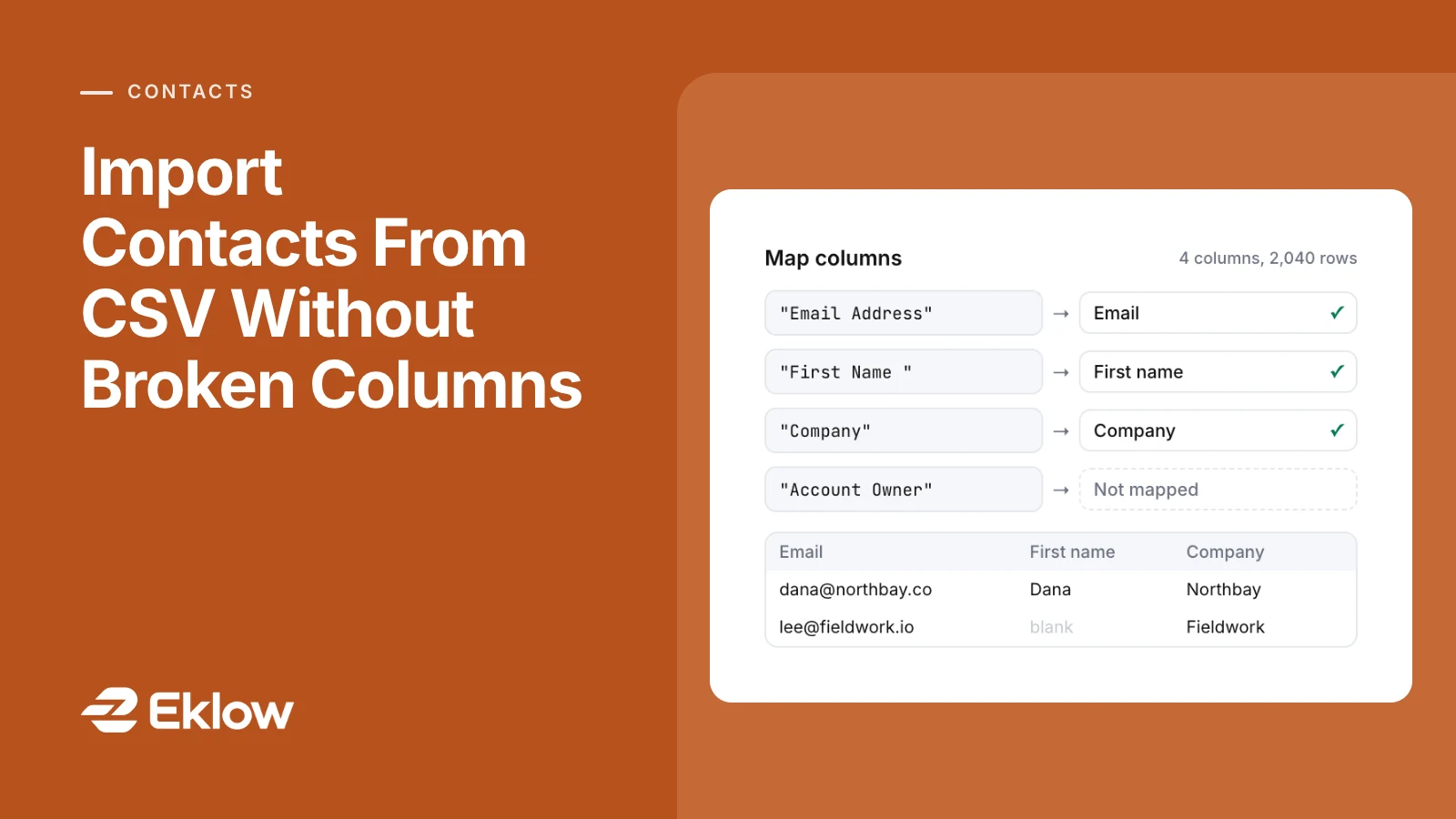
Mapping tells the importer which column is the email, which is the first name and so on. Automatic mapping saves time, and it is also where silent mistakes come from. Two rules make it safe:
- Match whole header names, not fragments. A guess that looks for "account" anywhere in a header maps an "Account Owner" column to Company. Better to leave a column unmapped than map it wrong.
- Use each column for one field at most. If one column feeds two fields, one of them is wrong.
Then check the mapping against the preview rows, not against the header names. If the first name column shows company names, it will in your emails too.
Re-Importing: Do Blank Cells Wipe Existing Data?
Re-importing a list you already have is common: a new export with an extra column, or a refreshed list from the same source. The question to ask your tool is what an empty cell does to a contact that already exists. The safe behaviour is that a blank cell changes nothing: the existing first name stays, and only cells that have a value update the contact. The unsafe behaviour is that a blank overwrites, and one partial export wipes the personalization from every contact in it.
Before You Send To An Imported List
- Verify the addresses. An imported list is only as good as its source; verification catches dead domains, disposable addresses and typos. How to clean an email list covers the checks, and the email verifier runs them on one address.
- Look at role addresses separately.
info@andsales@reach shared inboxes; see role-based email addresses. - Spot-check personalization. Open three or four contacts and read the fields as they would appear in your first line.
CSV Import Questions
Why Did A Column Import Blank?
Usually because the header in the file did not match the header the importer looked up, most often a trailing space, or because the column was mapped from the preview and the import read the file differently. Re-save the file with clean headers and map again.
Can I Import An Excel File Directly?
Many email tools take CSV only. Use File → Save As → CSV UTF-8, and import that.
Why Does My CSV Use Semicolons?
In regions where the comma is the decimal separator, Excel uses a semicolon between fields. Re-save with commas if your tool expects them, or check that it detects the separator.
Importing Contacts Into Eklow
In Eklow, Contacts → Import CSV takes a CSV of up to 5 MB and 25,000 rows per import. The preview and the import run the same parser, so what you map is what gets imported. Headers are trimmed of stray spaces, rows with no values (Excel's trailing commas) are skipped, and untitled columns are not offered for mapping. Automatic mapping uses exact header names ("Email Address", "E-mail", "First Name", "Surname", "Company Name", "Job Title", "Time Zone" and similar), puts each column on at most one field, and leaves anything it does not recognise unmapped for you to choose. You can map email, first name, last name, company, job title, time zone and a tags column, with tags separated by commas, semicolons or pipes.
Blank cells stay blank. A contact already in the workspace is matched by email and updated, and an empty cell never overwrites a value it already has. Rows without a valid email are skipped and counted, a time zone the importer cannot read stops the import with the row number so you can fix it, and you can have every imported address verified as soon as the import finishes. The import contacts from CSV guide walks through each step.
Keep reading
- DeliverabilityIs My Domain Hurting My Deliverability? A Domain Reputation Check, Signal By SignalHow to check your domain's reputation as an email sender: the public signals receivers can see, how to read each one by hand, and what to fix first when your domain is the problem.5 min read
- AIConnect Your Outreach Data To An AI Assistant Over MCPWhat you can ask an AI assistant about your campaigns, replies, mailboxes and domains once it is connected over MCP, and the security model that keeps it read-only and inside one workspace.3 min read