


Introduction
Connect an AI assistant such as Claude to Eklow, and you can ask it about your campaigns, replies, mailboxes and domains in plain English instead of clicking through screens.
Most questions about outreach are simple and tedious at the same time. Which campaign is getting the most replies this month? What did people say this week? Is the new domain ready? Which mailboxes cannot send yet? The answers are spread across four screens. A connected assistant answers them in one sentence.
How It Works
The connection uses MCP (Model Context Protocol), a shared standard that lets an AI assistant look things up in another app.
You ask a question. The assistant asks Eklow for the data it needs, reads the answer, and replies to you. You do not export spreadsheets or paste numbers into a chat.
To let it in, you give the assistant an API key: a password that lets another app read your Eklow data.
What You Can Ask
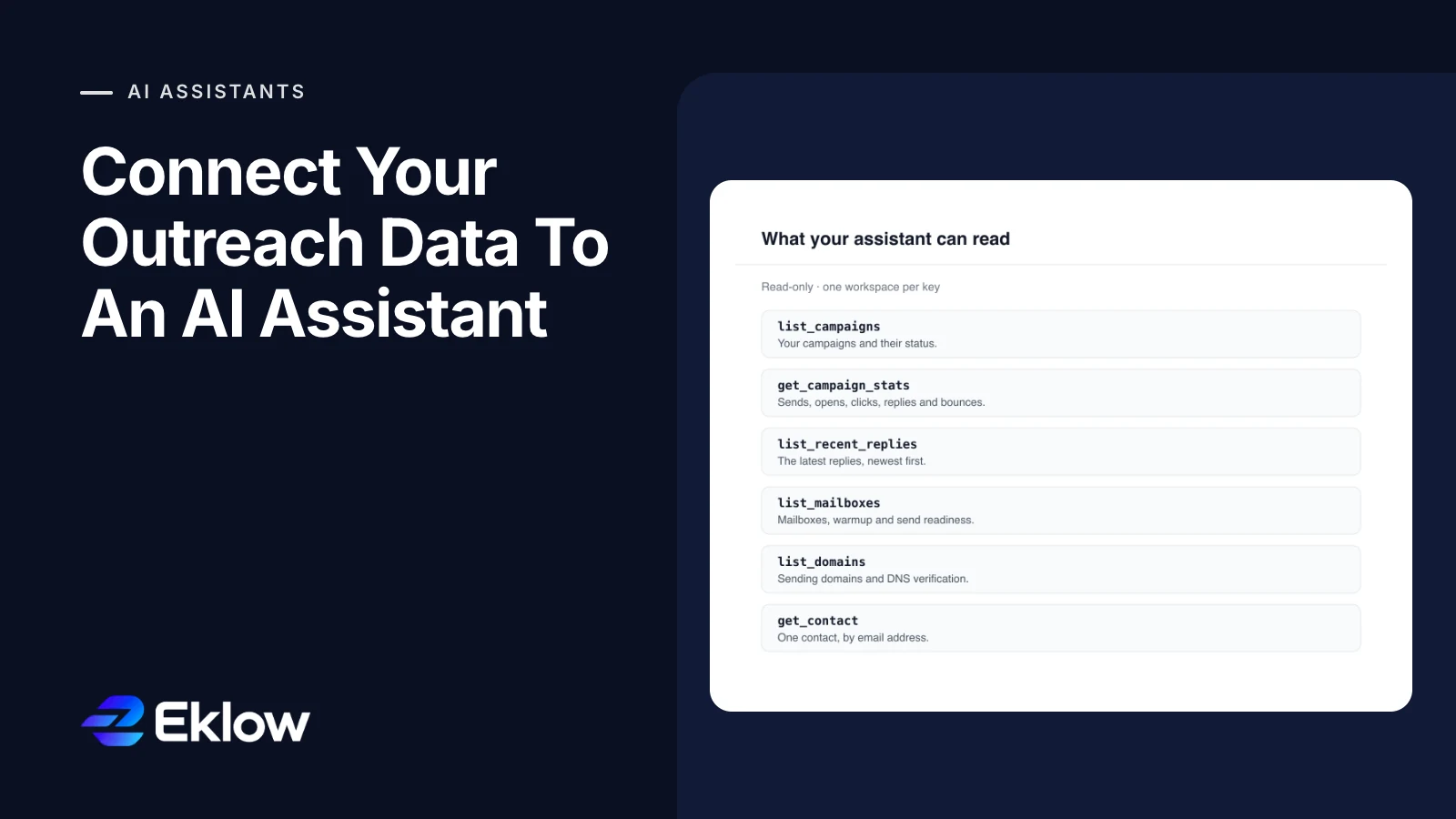
| Ask | What The Assistant Looks At |
|---|---|
| “Which campaigns are active, and how is each one doing?” | Your campaigns and their numbers |
| “Which campaign has the best reply rate?” | The numbers for each campaign |
| “Summarize this week's replies and flag anyone asking for a call.” | Your latest replies |
| “Which of my mailboxes are not ready to send, and why?” | Your connected mailboxes |
| “Is our new domain verified yet?” | Your sending domains |
| “What do we know about [email protected]?” | One contact |
The assistant can also combine answers. It can read your replies, notice three came from the same company, and look up each person, all in one answer.
What Keeps Your Data Safe
Giving an AI assistant access to prospect data deserves the same care as any other app. Here is how Eklow handles it:
- It can only read. The assistant cannot send email, start or pause a campaign, reply, or change a setting. It cannot do anything you would have to undo.
- One workspace per key. The key decides which workspace the assistant reads. It cannot reach any other workspace.
- Only admins create keys. Workspace admins and owners can create a key. Your normal sign-in to Eklow is never shared with the assistant.
- You can cut it off at any time. Revoke the key and the assistant loses access straight away. A key also stops working when the person who created it leaves the workspace.
- No passwords in answers. Mailbox details show status and readiness, never login details.
- Every lookup is logged. Eklow records which lookup ran and whether it worked, never the content. The number of lookups per minute is limited.
Replies Come From Strangers
Replies are written by people outside your company, and your assistant reads them. Someone could write a reply that tries to give your assistant instructions.
Eklow tells the assistant to treat reply text as information, never as instructions, and removes links and images from it. Because the assistant can only read, the worst a trick reply can do is produce a misleading answer. Check what the assistant suggests before you act on it.
Where The Data Goes
What Eklow returns goes to the assistant you connected, under that company's terms. Connect only assistants your company already trusts with customer data. Use a separate key for each one, so you can cut one off without affecting the others.
Connect Eklow In 3 Steps
- Open Settings → AI assistant (MCP).
- Press Create key, then Copy key. The key is shown only once, and Eklow tests the connection for you.
- Under Add it to your assistant, pick Claude, Claude Code, Gemini, ChatGPT or Other MCP client. The steps already contain your address and key.
Claude (on the website, in the desktop app and in Claude Code) and Codex work with a key today. The ChatGPT app is not supported yet.
Step-by-step setup for each assistant, and what to do for every test result, is in Connect Eklow to an AI assistant.
AI assistant access is being switched on workspace by workspace. If yours is not on yet, the connection test says so, and support can turn it on.
Keep reading
- DeliverabilityIs My Domain Hurting My Deliverability? A Domain Reputation Check, Signal By SignalHow to check your domain's reputation as an email sender: the public signals receivers can see, how to read each one by hand, and what to fix first when your domain is the problem.5 min read
- ContactsHow To Import Contacts From A CSV Without Excel Breaking ItHow to import contacts from a CSV file into an email tool: the format that works, the Excel problems that blank out columns, and how to map headers and keep empty cells empty.5 min read