


Introduction
AI can sort your cold email replies for you, so the interested ones reach you within minutes and the auto-replies never interrupt you.
A campaign that works brings a new problem: the inbox. Out-of-office notices, bounces, “not now”, “talk to my colleague”, one person asking for pricing and another asking to be removed, all mixed together. The reply that matters most is easy to miss, and every hour it waits makes it colder.
Two rules keep AI sorting safe. Let the AI label replies and send them to the right place, but never let it answer for you. And only act automatically on things that are easy to undo.
What Sorting A Reply Means
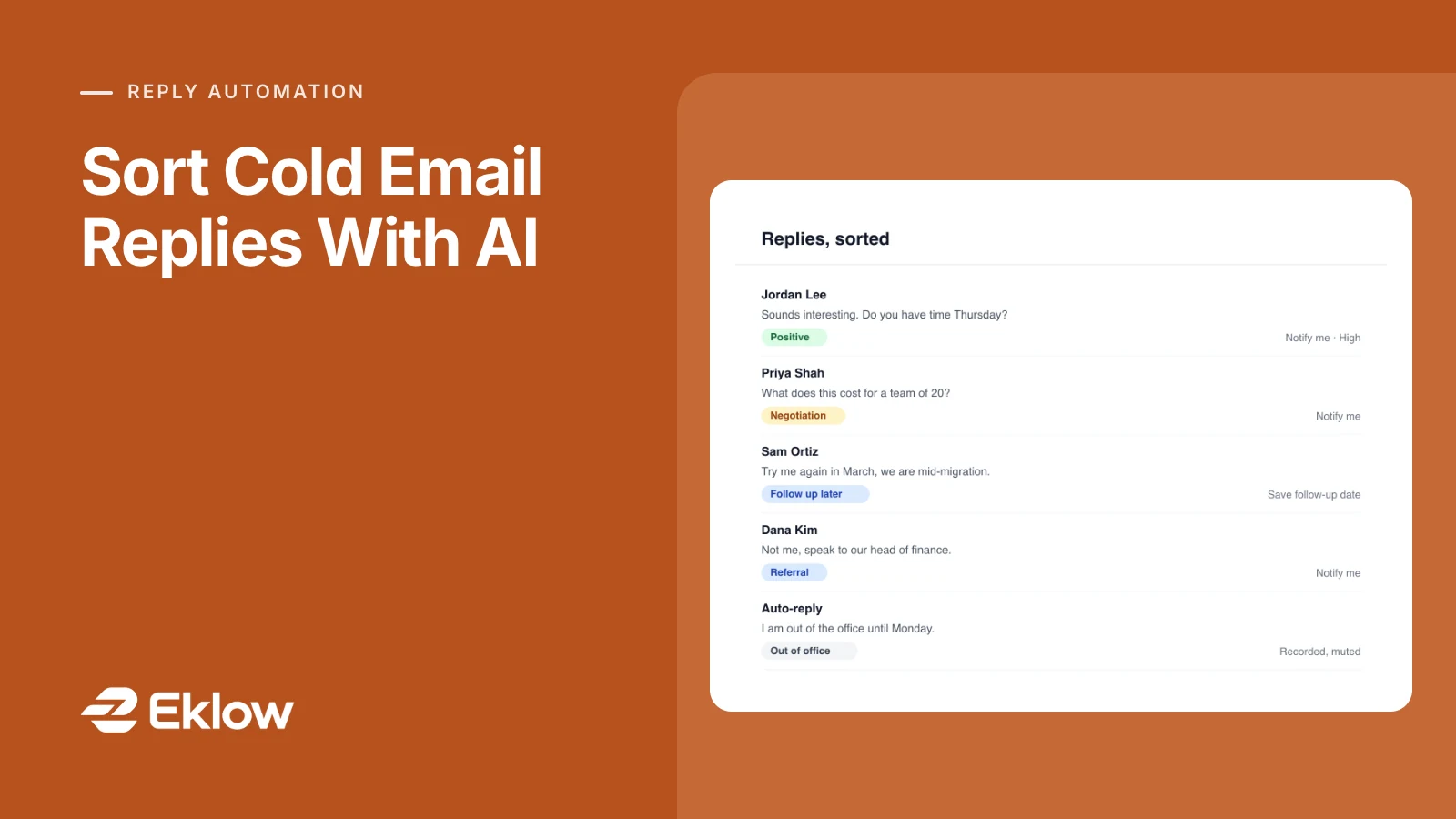
Sorting a reply means deciding three things: what kind of reply it is, how sure you are, and what should happen next. A person does this in a second. Software does it the same way for every reply, at three in the morning and in the middle of a busy launch.
Some replies do not need AI at all. Bounces, out-of-office notices and plain “please unsubscribe me” messages follow patterns a simple check catches. That check should run on every reply, whatever else is switched on, because honoring an unsubscribe is a legal duty.
AI is useful for the rest: the human replies, where the meaning is in the wording.
The Labels Worth Having
| Label | Typical Reply | What Usually Happens Next |
|---|---|---|
| Positive | “Sounds interesting, let's talk” | You hear about it now |
| Question | “Does this work with our CRM?” | You answer the same day |
| Follow up later | “Try me again in March” | A reminder on that date |
| Referral | “Speak to Dana in finance” | You contact the person named |
| Negotiation | “What would it cost for 20 seats?” | You hear about it now |
| Negative | “Not interested” | No more emails to that person |
| Unsubscribe | “Remove me from your list” | The contact is unsubscribed |
| Out of office, Bounce, Automated | Auto-replies and delivery notices | Recorded, no notification |
Keep an Other label for anything that does not fit. A long list of labels leads to confident wrong answers. A short list with a catch-all leads to honest ones.
Let The AI's Certainty Decide What Runs
With every label, the AI also says how sure it is. Use that as a gate.
A notification on a guess costs you a glance. Stopping someone's emails on a guess can end a conversation that was about to start. So let notifications go out freely, and only stop emails or tag contacts when the AI is sure. Replies it is unsure about wait for you to check.
Correcting a wrong label is part of the process. Each correction shows the AI what “positive” or “referral” means in your market, so later labels get better.
Five Rules To Start With
Start small. Five rules cover most of the value, and each is easy to check against what you would have done yourself.
- Interested, instantly. Positive and Negotiation replies notify you at once, by email, in the app or in Slack, marked high priority.
- Meeting and demo requests. A condition in plain words, such as “the prospect asks for a meeting, call or demo”, catches requests that never use the word “demo”.
- Pricing questions. Replies that ask about pricing, cost or a quote notify you, so a buying signal is not treated as a support question.
- Not now, with a date. Follow up later replies save the date the prospect named and remind you that day. When there is no clear date, nothing is saved. That is better than a guessed date.
- Quiet the noise. Out of office, Automated and Bounce replies are recorded and never notify you.
Add “stop the sequence” to a rule only once you trust its labels. It cancels every email still waiting to go to that contact, in every campaign, so keep it behind a high certainty setting.
Set It Up In Eklow In 4 Steps
- Open Automations. An admin switches on Analyze replies with AI at the top. AI stays off until then. The bounce, out-of-office and unsubscribe checks run either way.
- On the Settings tab, write two or three sentences in What matters to you about what a good reply looks like for your business.
- On the Rules tab, describe a rule in a sentence, for example “Tell me on Slack when someone asks for pricing or a demo”, and press Draft rule. Or start from a preset: Positive replies, Pricing questions, Follow up later, Referrals, Meeting and demo requests, or Mute out-of-office and automated.
- Press Test against past replies to see which recent replies the rule would have caught, then press Save.
From then on, each labelled reply shows its label and a one-line summary in the Inbox. Click the label to correct it.
Automations → Activity lists every match and what happened, so you can see what each rule did. Every setting and message is explained in Reply analysis and automation rules.
What Not To Automate
Do not let software answer an interested prospect. The reply that says “sounds interesting” deserves a person. A fast, short, human answer is what turns it into a meeting.
Use automation to get that reply in front of you within minutes, then write the answer yourself. How to respond to cold email replies covers what to send for each kind of reply.
Sorting is the part software does well. Deciding what to say is still yours.
Keep reading
- DeliverabilityNew Domain For Cold Email: The Checklist Before Your First SendBought a new domain for cold email? The setup checklist before the first send: DNS records, a real website, MX, warmup, and the volume a domain with no history can carry.4 min read
- DeliverabilityEmail Spam Score: What It Measures And How To Lower ItWhat an email spam score is, how a spam filter adds up its rules against a threshold, what a good score is, and the edits that lower it, rule by rule.4 min read