


Introduction
It looked perfect in Gmail. Then a colleague on Outlook forwarded one of your emails back and the signature was unrecognisable: the headshot stretched to full width, the two columns stacked on top of each other, the font switched to Times New Roman and a gap the height of a paragraph opened up between your name and your phone number.
Outlook email signature formatting breaks for one main reason: classic Outlook for Windows renders HTML email with Microsoft Word's layout engine, not a web browser's. Word ignores most modern CSS, including flexbox, grid, floats, margins on many elements and max-width, and it sizes images from their HTML attributes rather than CSS. A signature built like a web page falls apart there. The fix is to build it like an email from 2005: nested tables for layout, every style written inline on every cell and link, image sizes set as width and height attributes, and only fonts that every computer has. The sections below explain each symptom and its cause.
First, Which Outlook Are You Looking At?
"Outlook" is several different programs, and they do not render email the same way. Before fixing anything, find out which one shows the problem.
| Version | How It Renders | Typical Trouble |
|---|---|---|
| Classic Outlook for Windows | Word's HTML engine | Most layout and image problems in this post |
| New Outlook for Windows | Web rendering, like Outlook on the web | Far fewer; mostly paste and font issues |
| Outlook on the web | Browser rendering | Rare; behaves close to other webmail |
| Outlook for Mac | WebKit-based rendering | Occasional font and spacing differences |
| Outlook mobile apps | Mobile web view | Wide signatures squeezed or scrolled |
If the signature only breaks for recipients on classic Outlook, the cause is almost always one of the Word limitations below. If it breaks the moment you paste it into the editor, the problem is the paste, which is covered further down.
Common Outlook Signature Problems And Their Causes
The Photo Or Logo Shows At The Wrong Size
Word largely ignores CSS sizes on images and uses the width and height attributes, or failing that the image file's own pixel size. A 400-pixel logo meant to display at 120 pixels via CSS shows at 400. The fix is to set both attributes on the img tag, matching the display size, and save the file at twice that size so it stays sharp on high-resolution screens.
<img src="https://example.com/maya.png" width="80" height="80"
     alt="Maya Okafor" style="display:block; width:80px; height:80px;">
Columns Stack Or The Layout Collapses
Side-by-side layouts built with flexbox, CSS grid or floats have no meaning to Word, so the parts simply stack. Tables do work. A photo-left signature is a table with one row and two cells: the image in the first, the details in the second, each cell with an explicit width and vertical alignment.
<table role="presentation" cellpadding="0" cellspacing="0" border="0">
  <tr>
    <td width="92" valign="top" style="padding-right:12px;">
      <img src="https://example.com/maya.png" width="80" height="80" alt="Maya Okafor">
    </td>
    <td valign="top" style="font-family:Arial, sans-serif; font-size:14px; color:#1f2937;">
      <strong>Maya Okafor</strong><br>Head of Growth, Northwind Labs
    </td>
  </tr>
</table>
The Font Changes To Times New Roman
Two causes. A web font loaded from a font service is not available to Word, which falls back to its default serif. And Word does not reliably inherit a font set on an outer element, so text in a cell or a link without its own font-family drops back to the default. Use a font installed on almost every computer, such as Arial, Helvetica, Verdana, Georgia or Tahoma, and set font-family on every cell and every link.
Gaps Appear Between Lines
Paragraph tags carry Word's default paragraph spacing, so a signature built from several p elements opens up gaps. Margin values on p and div are applied inconsistently. Use line breaks or separate table rows for each line, and control spacing with padding on table cells, which Word respects.
Links Turn Blue And Underlined
A colour set on the surrounding text does not carry into a link in Word. Put the colour and text-decoration directly on each a tag. Phone numbers and email addresses written as plain text may also be turned into blue links automatically, so make them proper tel: and mailto: links and style them yourself.
Images Arrive As Attachments Or Do Not Show
If you inserted the image from your computer, Outlook may embed it in each email, where some recipients see it as an attachment. Host the image at a public https address instead and reference it by URL. Some recipients still block remote images until they trust the sender, which is why your name, title and contact details must always be text, never part of an image.
When Pasting Into Outlook Breaks It
Copying a signature from a web page and pasting it into classic Outlook's signature editor runs it through Word's paste conversion, which can drop styles or change spacing. If that happens, there is a more reliable route: save the signature as an HTML file in Outlook's Signatures folder and choose it from the same signatures window. In new Outlook and Outlook on the web, pasting into the signature box in Settings normally keeps the layout.
- In classic Outlook, go to File, Options, Mail, then Signatures, and click New.
- Paste the copied signature into the editor and save.
- If the layout shifts, save the signature as an .htm file in your Signatures folder instead, then pick it in the same window.
- Send a test to an address you can open in Gmail and on a phone, not only to yourself in Outlook.
An Outlook-Safe Signature Checklist
- Layout in tables with role="presentation", cellpadding="0", cellspacing="0" and border="0".
- font-family, font-size and color written inline on every cell and every link.
- Width and height attributes on every image, matching the display size.
- PNG or JPG images at a public https address; no SVG or WebP, which several mail apps block or skip.
- Spacing with cell padding, not margins or empty paragraphs.
- Total width under about 600 pixels so it fits a reading pane and a phone.
- Name and contact details as text, with alt text on every image.
Questions About Outlook Signatures
Why Does My Signature Look Different In Outlook Than In Gmail?
Because they render HTML with different engines. Gmail displays email much like a browser, while classic Outlook for Windows uses Word's layout engine, which supports far less CSS. A signature that relies on modern CSS looks right in Gmail and breaks in Outlook. Building with tables and inline styles makes both agree.
Why Is My Signature Image Blurry In Outlook?
Usually because the image file is saved at exactly its display size and is being shown on a high-resolution screen, or because Outlook scaled it. Save the image at twice the display size and set the width and height attributes to the display size, so Outlook shows it smaller and sharper.
Does New Outlook Have The Same Problems?
Much less. New Outlook for Windows renders email like Outlook on the web, which handles modern HTML far better than Word. But many recipients still use classic Outlook, and you do not control what they use, so an Outlook-safe signature remains the sensible default.
Can I Use An SVG Logo In My Signature?
It is safer not to. Several mail apps, including Gmail and classic Outlook, block or skip SVG images in email, so the logo simply does not appear. Use a PNG for a logo, ideally with a transparent background, and a JPG for a photo.
How Eklow Handles This
Our free email signature generator writes signatures the way this checklist describes. Every part of the layout is a table cell with its own fonts and colours, sizes are set as both attributes and styles, and there is no flexbox, grid or margin-based layout. Fonts are chosen from ten that every mail app has. Images load from a public https address with width, height and alt text, and SVG and WebP are left out. Phone numbers become tel: links in international format and email addresses become mailto: links.
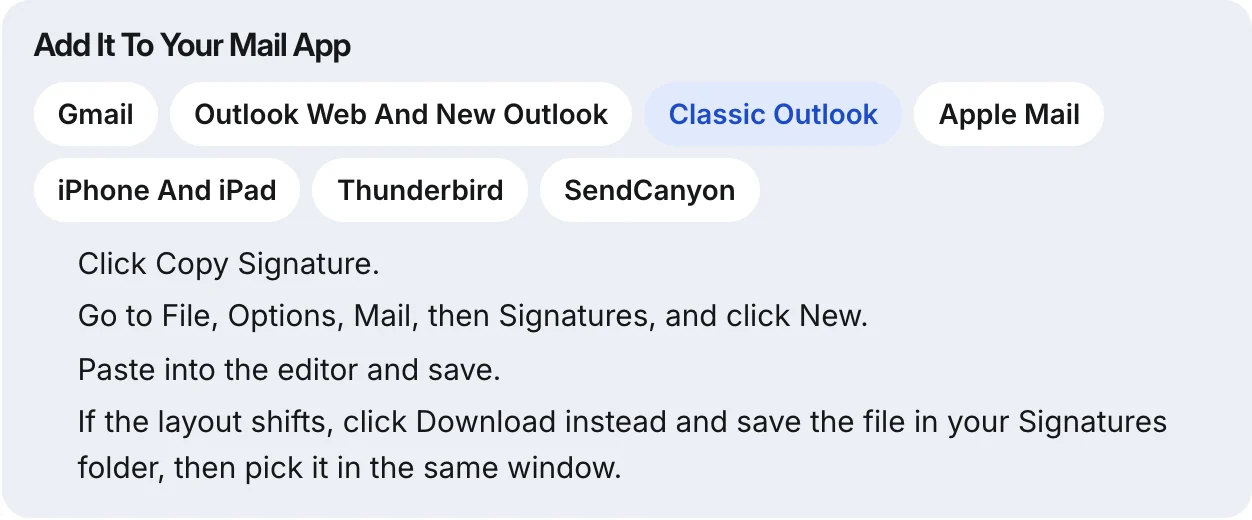
Under the preview, steps for Gmail, Outlook on the web and new Outlook, classic Outlook, Apple Mail, iPhone and iPad, Thunderbird and Eklow show exactly where to paste, and Download saves the signature as a file for classic Outlook's Signatures folder. The cold email check beside it shows the HTML size against Gmail's 10,000-character signature limit. To use it in an Eklow campaign, Copy HTML, switch a campaign step to Raw HTML and paste it at the end; an inbox placement test then shows where the finished email lands.
Keep reading
- SignaturesEmail Signature Disclaimer: What You Need And What You Don'tWhich email signature disclaimer lines a law actually requires, which ones do nothing, and how to keep the footer short enough for cold email. With examples.6 min read
- DeliverabilityIs My Domain Hurting My Deliverability? A Domain Reputation Check, Signal By SignalHow to check your domain's reputation as an email sender: the public signals receivers can see, how to read each one by hand, and what to fix first when your domain is the problem.5 min read