


Introduction
You spent an afternoon on the monthly report email. On your laptop it looks right: navy header, white card, a blue button. Then a customer forwards a screenshot from their phone. The header is black, the card is black, your dark grey logo has vanished into the background, and the footer link is a blue you can barely read. Nobody changed the email. Their phone did.
Email dark mode is the mail app recolouring your message to match a dark screen, and each app does it differently. Broadly there are three behaviours. Some apps apply the dark styles you wrote yourself and otherwise leave the email alone. Some darken only the light backgrounds and lighten only the dark text. Some invert every colour in the message. You cannot choose which one your reader gets, so a dark mode email has to survive all three. This post explains where each behaviour comes from, how to design for it by hand, and how to see all three before you send.
The Three Kinds Of Email Dark Mode
A web page in a browser is not darkened unless it asks to be. The WebKit team said so plainly when Safari added dark mode support: Safari and WebKit do not auto-darken web content, so a page must opt in. Mail apps are allowed to go further. The W3C's CSS Color Adjustment specification lets a user agent override a document's colour scheme, and for a document with no dark support of its own that override triggers automatic adjustment of its colours. That is the rule every mail app's email dark mode is built on, and the specification leaves the details to the app.
| Behaviour | What changes | What the email can do about it |
|---|---|---|
| Your dark styles | Nothing, unless the email has CSS for dark mode; then that CSS applies | Everything: you choose every colour |
| Partial invert | Light backgrounds turn dark and dark text turns light; colours already dark stay put | Little: only your choice of colours and images |
| Full invert | Every colour flips, including ones that were already dark | Little: only your choice of colours and images |
Which app does what is the uncertain part. Google does not document how the Gmail apps recolour mail. In public tests the Gmail app for Android has darkened light areas only, and the Gmail app for iPhone has inverted the whole message. Treat that as observed behaviour that can change with any app update, not as a promise.
Which Apps Use Your Own Dark Mode CSS
The way to write dark styles is the prefers-color-scheme media feature from the W3C's Media Queries Level 5 specification. Rules inside @media (prefers-color-scheme: dark) apply only when the reader's system is in dark mode. Support in mail apps is narrower than in browsers. According to the caniemail support data, last tested in March 2023:
| Mail app | Applies your dark styles |
|---|---|
| Apple Mail on iPhone (iOS 13 and later) | Yes |
| Outlook for iPhone | Yes |
| Outlook for Android | Yes, since early 2023 |
| Samsung Email (6.1 and later) | Yes |
| Gmail on iPhone, Android and the web | No |
| Yahoo Mail | No; the media query is rewritten so it never matches |
So writing dark styles is worth it, but in email dark mode they will not reach a reader on Gmail. A Gmail reader gets whatever the app decides, applied to your light design.
The Color Scheme Meta Tag
The second signal is a meta tag in the head of the email, <meta name="color-scheme" content="light dark">, which tells the app the email supports both schemes. The CSS property behind it has one more keyword that matters here: only, which the specification defines as forbidding the user agent from overriding the colour scheme. The caniemail data for the meta tag, retested in September 2026, records the Gmail apps on iPhone and Android as supporting only the value light only. If that holds for your readers' app versions, it is the one switch that asks Gmail not to recolour a message at all. It is recent and narrow, so test it before you rely on it.
<meta name="color-scheme" content="light dark">
<style>
  @media (prefers-color-scheme: dark) {
    .page { background: #14171f !important; }
    .card { background: #1f2430 !important; }
    .ink  { color: #eef1f6 !important; }
    .soft { color: #b7bdcb !important; }
  }
</style>
The !important is there because most email colours are written inline, and an inline style beats a class rule unless the class rule is marked important. Give every element whose colour you set inline a class, so the dark block has something to hook onto.
What Breaks In Email Dark Mode
Email dark mode failures are predictable once you know which of the three treatments the reader gets. These are the ones that show up again and again:
- Dark logos on transparent backgrounds. A black or navy logo saved as a transparent PNG sits directly on whatever the background becomes. When the card turns dark, the logo disappears.
- Logos on a white box. The opposite problem: a logo saved with its own white background stays a bright white rectangle in the middle of a dark email, because the apps leave images alone.
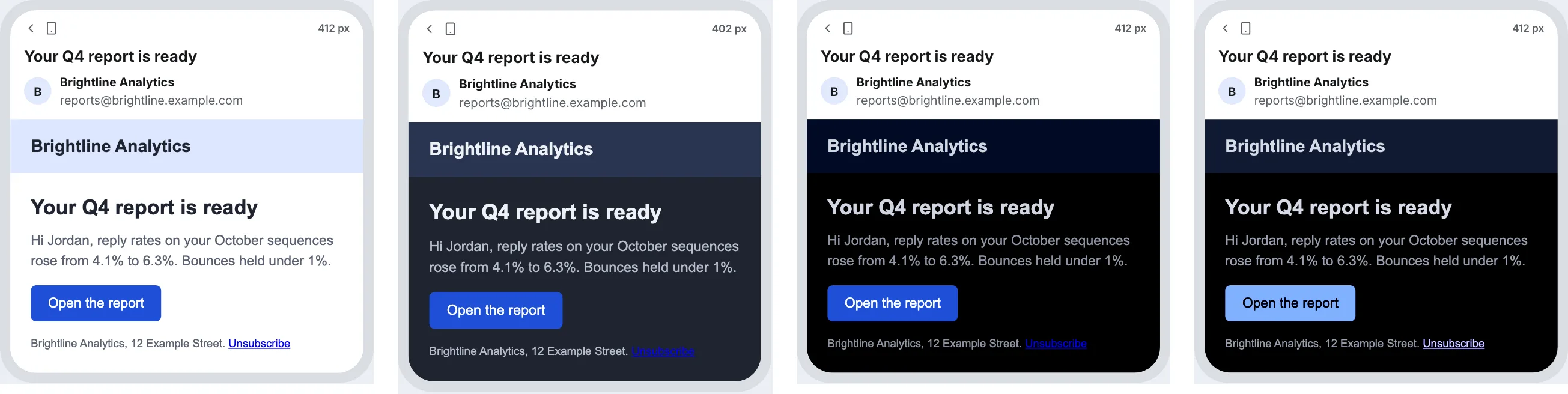
- Links you never coloured. A link with no colour of its own keeps the app's default blue, which can sit on a dark card at very low contrast. In the figure above, the unstyled Unsubscribe link in the second phone shows exactly this.
- Buttons that change brand colour. A full invert also flips your button. The blue button in the fourth phone came out as a pale blue, because inverting and rotating the hue lands near the original hue but much lighter.
- Text baked into images. A headline inside an image does not change at all, so it may end up as dark text on a dark background if the image was transparent.
How To Design A Dark Mode Email By Hand
You cannot make the three behaviours agree, so design for the worst of each. This order covers most cases:
- Write dark styles for every background and text colour you set, and declare
light darkin the color-scheme meta tag. That handles Apple Mail and the Outlook apps. - Fix the logo for both grounds. Use a transparent PNG with a thin light outline or a soft light glow around dark lettering, or swap the image in your dark styles with a light version.
- Avoid pure black and pure white in the design. An inverted
#ffffffbecomes#000000and the reverse. Off-white and very dark grey grounds shift less and keep some depth after an invert. - Colour every link and every button explicitly, inline, so nothing falls back to an app default you did not pick.
- Check contrast in both appearances. WCAG 2.2 success criterion 1.4.3 asks for at least 4.5:1 for body text, and Apple's accessibility guidelines ask designers to check the minimum contrast in both light and dark appearances. Run your text colours against your dark card colours as well as your light ones.
- Keep words out of images. Live text is recoloured with everything else; text inside a picture is not.
Then look at the dark mode email under each treatment. Sending a test to your own phone covers one app in one mode. Seeing the light version next to the inverted ones is quicker and shows the button and logo problems at a glance.
Email Dark Mode Questions
Can I Stop Gmail From Changing My Email In Dark Mode?
Not reliably. Gmail ignores prefers-color-scheme styles. The newest caniemail test, from September 2026, records the Gmail apps honouring the color-scheme meta tag only with the value light only. That may keep an email light, but it is recent, narrow and undocumented by Google, so design your email to survive an invert anyway.
Why Does My Logo Disappear In Dark Mode?
Because it is dark lettering on a transparent background. When the app turns the background dark, nothing separates the logo from it. Add a thin light outline or glow to the artwork, place it on a light shape that is part of the image, or swap in a light version with your dark styles.
Does Dark Mode Affect Plain-Text Emails?
Plain-text email has no colours of its own, so the app simply draws it in its normal dark-mode text and background colours. There is nothing to invert and nothing to break. That is one reason a short plain-text cold email is the safest format in dark mode.
How Do I Test An Email In Dark Mode Without A Phone?
Use a preview that can apply your dark styles and approximate the invert treatments, then confirm with one real device. A preview shows layout and colour problems quickly. It cannot match each app's exact recolouring, because the apps do not publish their algorithms.
How Eklow Handles This
The free mobile email preview draws your email at a real phone's screen width and has four appearances. Your dark styles takes the rules inside your prefers-color-scheme: dark blocks and applies them, which is what Apple Mail and the Outlook apps do. Partial invert darkens backgrounds whose relative luminance is above one half and lightens text below it, leaving colours that are already dark alone. Full invert flips every colour and flips images back so photos look normal. The two invert views are labelled as approximations on screen, because the apps do not publish their exact colours.
Turn on Compare to put two views side by side, for example Apple Mail with your dark styles next to Gmail with a full invert. Once you check the email, the findings say whether it has dark styles at all. The figure in this post is the tool's own output for the sample report email.
The same tool sits in the Tools tab inside Eklow, next to the template checker, which scores the same email for spam filter rules, links, images and hidden text before it goes out. Rendering only matters if the email reaches the inbox, so pair it with an inbox placement test and read how to test a cold email template for spam before a campaign launches.
Keep reading
- Email DesignMobile Friendly Email: Width, Font Size And Tap Targets That WorkA 600 px email on a 360 px phone gets cut off or shrunk. The widths, font sizes and tap target sizes that make a mobile friendly email, from Apple and WCAG.8 min read
- Email DesignPreheader Text: Why The Inbox Shows The Wrong Line Under Your SubjectIf the inbox shows "View this email in your browser" under your subject, your preheader text is missing. Here is how inboxes pick that line and how to set it.6 min read